Where we left off
Every flow so far had you paste your GOOGLE_API_KEY straight into the Google Generative AI component's own field. That's fine for a two-node test, but it means the key lives inside the flow itself, copy-pasted into every new flow that needs it, and sitting in plain text if you ever export or share that flow's JSON. Global Variables fix this: one place to store a secret, referenced by name from as many components as you want.
Setup for this lesson
This lesson calls Langflow's REST API directly (more on why below), so it needs its own API key, separate from your Gemini key:
uv run langflow api-keyCopy the printed key into .env as LANGFLOW_API_KEY=... (see .env.example at the project root). Langflow already auto-created a GOOGLE_API_KEY Global Variable for you at first startup, picked up from your own GOOGLE_API_KEY in .env, nothing to configure there.
Do this yourself
- Open Settings -> Global Variables in Langflow (left sidebar of the Settings page). Confirm
GOOGLE_API_KEYis already listed, typeCredential, value masked. - Build the Lesson 2 flow again (or reopen it): Chat Input -> Google Generative AI -> Chat Output.
Open the Google Generative AI component's settings. Instead of typing your key into Google API Key, click the field and pick GOOGLE_API_KEY from the dropdown of existing Global Variables. Compare to this screenshot of exactly this:
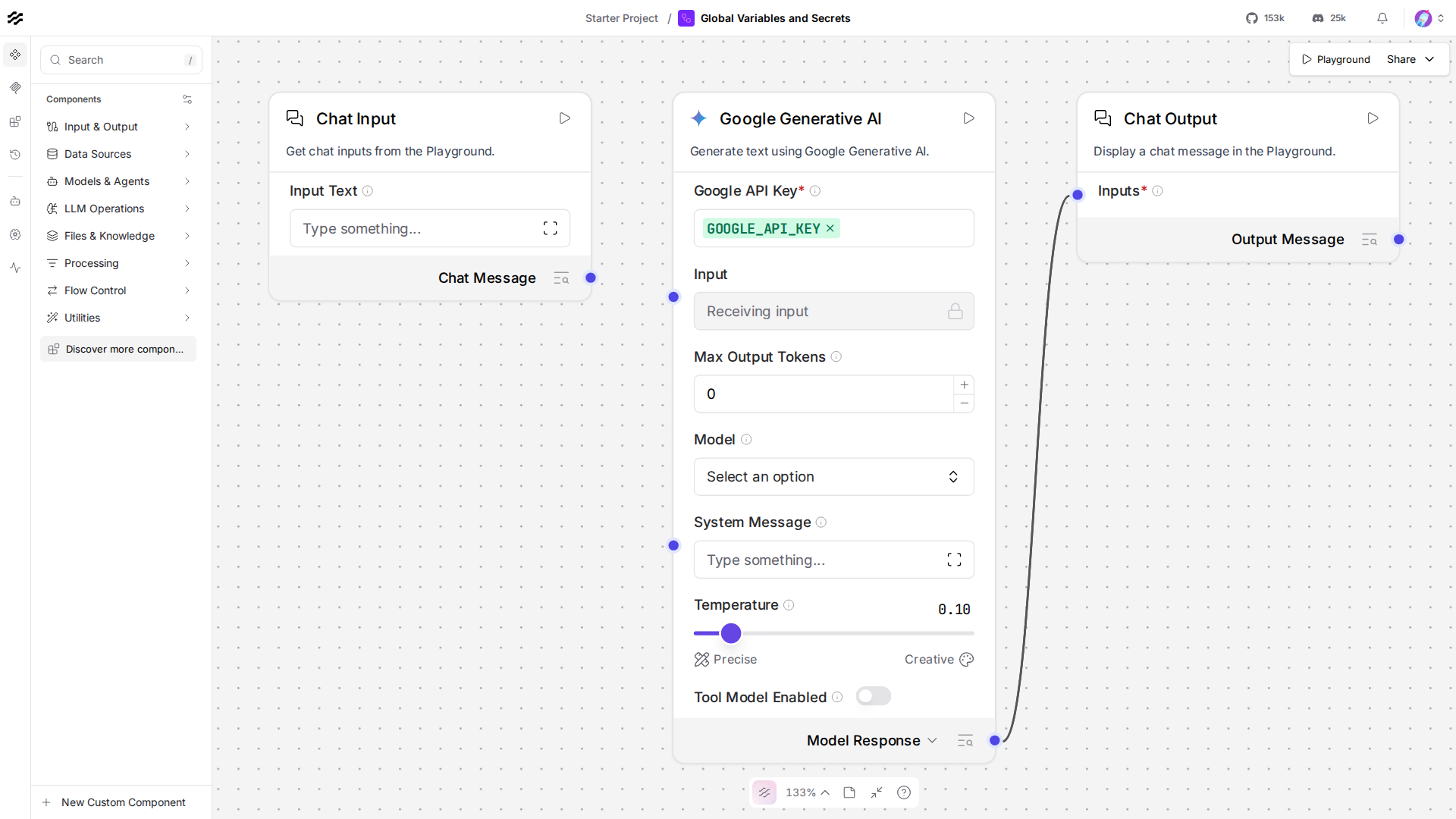
- Run it in the Playground, confirm it still works, same as before, just without a raw key sitting in the flow.
Why this lesson uses the REST API, not run_flow_from_json
Resolving a Global Variable by name has to know which user's variables to look up, that identity comes from an authenticated request. Langflow's real server has that context on every REST call. run_flow_from_json, this course's headless loader everywhere else, is a self-contained, in-process call with no request behind it, so it can't resolve load_from_db fields correctly. Lesson 11 covers the REST API on its own terms, this lesson borrows just enough of it now because it's the only path that actually demonstrates Global Variables working.
The code, piece by piece
gemini.set(input_value=chat_input.message_response, model_name="gemini-3.5-flash-lite", api_key="GOOGLE_API_KEY")gemini._inputs["api_key"].load_from_db = TrueSetting api_key="GOOGLE_API_KEY" stores that string as the field's value, the variable's name, not a real key. .set() also resets load_from_db to False by default (it assumes a literal value unless told otherwise), so it has to be turned back on explicitly, the exact flag the canvas sets when you pick a variable from that dropdown instead of typing a value.
def upload_flow() -> str: with FLOW_PATH.open("rb") as f: response = httpx.post( f"{LANGFLOW_URL}/api/v1/flows/upload/", headers=HEADERS, files={"file": ("flow.json", f, "application/json")}, ) response.raise_for_status() return response.json()[0]["id"]This is the code form of dragging flow.json onto the flows dashboard, Langflow assigns it a new flow_id on the server, needed before you can run it over the REST API.
def run_flow(flow_id: str, input_value: str) -> str: response = httpx.post( f"{LANGFLOW_URL}/api/v1/run/{flow_id}", headers=HEADERS, json={"input_value": input_value}, timeout=30, ) response.raise_for_status() data = response.json() return data["outputs"][0]["outputs"][0]["messages"][0]["message"]The actual run: POST /api/v1/run/{flow_id}, authenticated with LANGFLOW_API_KEY. This is what resolves GOOGLE_API_KEY correctly, the request carries a real user context the way run_flow_from_json never does.
Checkpoint
- Global Variable: one named, stored secret (or plain value), referenced by name from any component field that opts in, instead of copy-pasted everywhere it's needed.
load_from_db: the flag that makes a field read its value as a variable name to look up, instead of a literal value,.set()turns it off by default and it has to be re-enabled explicitly for a name-based reference.- why REST here: variable resolution needs a real authenticated request context, something only the actual server call provides.
If anything here still feels unclear, ask before moving to Lesson 8.